Add new users
To add new users to TaxWise Online, use the
following steps:
- Log in as the Admin or a user with the Administrator role.
- Click your name on the top right of the screen and select Settings.
- Click Manage Users.
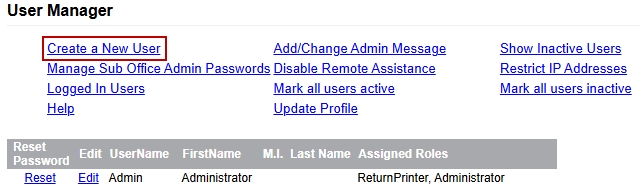
- Click Create a New User.
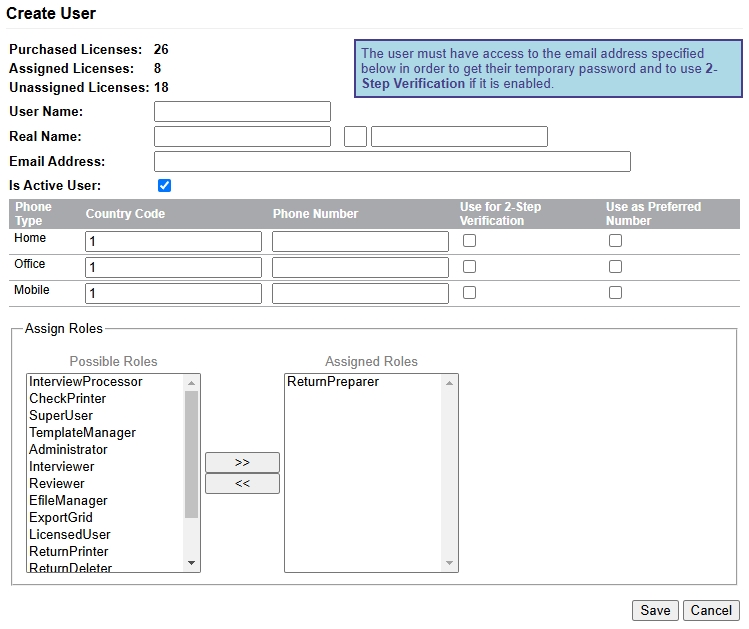
- Enter a user name in the User Name box. The user names are case-sensitive and should be entered exactly the same way each time.
All preparers must have their own unique user name.
- Enter the user's first, middle initial and last name in the Real Name box.
- Enter the
user's e-mail address in the Email Address box.
The user must have access to the email address entered in order to get their temporary password and to use 2-step verification, if enabled.
By default, the check box Is Active User is selected.
- Enter the user's phone number(s) as applicable. Also select the check box to select the number to use for 2-step verification and as the preferred number.
- Assign user role(s) for the user by selecting the desired user role(s) in the Possible Roles window and clicking the Arrow button >> to move the user role to the Assigned Roles window.
To assign more than one role to a new user, hold down the Ctrl key and select each additional role, then click the Arrow button >> to move the selected roles in the Assigned Roles window.
- Click Save.
User roles can be removed by highlighting the desired role(s) to be removed in the Assigned Roles window, then clicking the Arrow button << to move them to the Possible Roles window.
See Also:
User roles